
|
Book Home Page Bloglines 1906 CelebrateStadium 2006 OfficeZealot Scobleizer TechRepublic AskWoody SpyJournal Computers Software Microsoft Windows Excel FrontPage PowerPoint Outlook Word 

Host your Web site with PureHost! 
|
 
Thursday, March 22, 2018 – Permalink – VBA Named ArgumentsAn easier readUse named arguments for cleaner VBA code. Most likely, you use positional arguments when working with VBA functions. For instance, to create a message box, you probably use a statement that adheres to the following syntax: MsgBox(prompt[, buttons] [, title] [, helpfile, context]) When you work the MsgBox function this way, the order of the arguments can't be changed. Therefore, if you want to skip an optional argument that's between two arguments you're defining, you need to include a blank argument, such as: MsgBox "Hello World!", , "My Message Box" Named arguments allow you to create more descriptive code and define arguments in any order you wish. To use named arguments, simply type the argument name, followed by :=, and then the argument value. For instance, the previous statement can be rewritten as: MsgBox Title:="My Message Box", _ Prompt:="Hello World!" (To find out a function's named arguments, select the function in your code and press [F1].) See all Topics excel Labels: VBA <Doug Klippert@ 3:54 AM
Comments:
Post a Comment
Tuesday, January 23, 2018 – Permalink – Office VBA TricksVideo + Free code"Learn tips and use sample code for several Office applications. These tips can help you to be more productive and can also be a starting point for developing your own tools, utilities and techniques."
VBA Tips & Tricks Getting Started with VBA in Office 2010 Download Office 2013 VBA Documentation (VBA is VBA and is, in most cases, usable in all versions of Office) See all Topics excel <Doug Klippert@ 3:02 AM
Comments:
Post a Comment
Saturday, September 02, 2017 – Permalink – Indent CodeRealign a bunchIndenting blocks of VBA code, such as statements within loops or If...Then statements, makes reading a procedure much easier. You probably indent a code statement using the [Tab] key, and outdent by using [Shift][Tab]. However, you may not be aware that the [Tab] and [Shift][Tab] techniques also work when multiple code lines are selected. The Visual Basic Editor also provides Indent and Outdent buttons on the Edit toolbar that allow you to easily reposition blocks of code. See all Topics excel <Doug Klippert@ 3:35 AM
Comments:
Post a Comment
Tuesday, July 04, 2017 – Permalink – Select by CodeProgrammatically pick cellsMicrosoft has provided 22 ways to select cells/ranges by using Visual Basic procedures in Excel. Here are a few of the subjects covered:
Dick Kusleika has some comments on the coding: Spreadsheets are the Devil See all Topics excel <Doug Klippert@ 3:43 AM
Comments:
Post a Comment
Saturday, November 12, 2016 – Permalink – Short Menu ChangeIn contextRight clicking an object can display a shortcut menu.Here are some instructions about how to write a macro that will edit that menu. Right Click See all Topics excel Labels: Customize, General, Macros, Reference, Shortcuts, Tips, Tutorials, VBA <Doug Klippert@ 3:55 AM
Comments:
Post a Comment
Thursday, September 22, 2016 – Permalink – Help IDsVBA codeWhen you build a macro, you can call up information from the Excel Help file.Ron DeBruin has the information needed through 2007-2013. Right clicking the Helpfile and choosing Properties will show the HP####### number in 2010+. Help Context IDs for Excel See all Topics excel <Doug Klippert@ 3:50 AM
Comments:
Post a Comment
Monday, August 15, 2016 – Permalink – Display Row, Column HeadingsUser FunctionHere's an odd little use of functions. If you want to display the Row number on a spreadsheet, the formula =Row()works just fine. You could then hide the Row and Column headings and format the Row numbers any way you want. If a Row is deleted the numbers will automatically update. Column headings are a little harder. The formula =Column() will show the number of the Column, not the letter, i.e. "2" instead of "B". The following formula extracts the Column letter: =SUBSTITUTE(ADDRESS(1,COLUMN(),4),"1","") To break it down: =ADDRESS(row_num,column_num,abs_num) This finds the address at Row number "1" and current Column number. The abs_num of "4 " says make the result a relative address. The formula will produce a result such as "AA1". SUBSTITUTE(text,old_text,new_text) This function looks at the address, i.e. "AA1". It replaces the Row number character ("1") with a null or empty value (""). The formula will produce a result such as "AA". Also see Daily Dose of Excel by Dick Kusleika. Dick mused:'
Of course Office 2007+ has taken it up to 16,284 columns. See all Topics excel Labels: Functions, General, Reference, Shortcuts, Tips, Tutorials, VBA <Doug Klippert@ 3:27 AM
Comments:
Post a Comment
Saturday, June 11, 2016 – Permalink – When 28 is 30How long is a month?When you use the banker's DAYS360 function to calculate the number of days between two dates, you can get an odd answer. If you use the DAYS360 function with a start date of February 28 and with an end date of March 28, a value of 28 days is returned. You expect a value of 30 days to be returned for every full month. (12*30=360) This behavior may occur if you use the U.S. method, also known as the NASD method, with the DAYS360 function. To work around this behavior, use the European method with the DAYS360 function. With the European method starting dates and ending dates that occur on the 31st of a month become equal to the 30th of the same month. To use the European method with the DAYS360 function, use the following syntax: =DAYS360(cell number of start date,cell number of end date,TRUE) Using FALSE or omitting the third parameter uses the U.S. method Support.microsoft.com An unexpected value with the DAYS360 function See all Topics excel <Doug Klippert@ 3:43 AM
Comments:
Post a Comment
Thursday, May 19, 2016 – Permalink – Dynamic TabsChange tab names automaticallyChanging the names of tabs is easy, just double click the tab or right click and choose rename. Allen Wyatt has a small piece of code that will automatically update the tab name based on the value of a cell in the spreadsheet. Sub myTabName()
ActiveSheet.Name = ActiveSheet.Range("A1")
End Sub
Allen also has some error checking code on his site: Dynamic Worksheet Tabs Dick Kusleika suggests another way using a change event: Naming a sheet based on a cell See all Topics excel Labels: Customize, General, Macros, Reference, Shortcuts, Tips, Tutorials, VBA <Doug Klippert@ 3:30 AM
Comments:
Post a Comment
Sunday, April 17, 2016 – Permalink – VBA HelpFrom MicrosoftHere is a Help reference covering the vagaries of VBA. Office VBA Language Reference See all Topics excel Labels: VBA <Doug Klippert@ 3:11 AM
Comments:
Post a Comment
Tuesday, March 29, 2016 – Permalink – Thirtieth Condition FormattingThree is not always enoughPre-2007 Excel gives the user the ability to specify up to three conditions under Format>Conditional Formatting. If that is not enough, here's the code that extends the conditions to 30!  Extended Conditional Formatter Also see: Conditional Formatting (including 2007) See all Topics excel Labels: Customize, Formats, Formulas, General, Reference, Shortcuts, Tips, Tutorials, VBA <Doug Klippert@ 3:09 AM
Comments:
Post a Comment
Sunday, March 06, 2016 – Permalink – Count the ColorsI bid 3 RedWhat if you would like to know the color name or to count or to sum cells by a fill color? There is no built-in function in Excel.Sum and Count by fill color Chip Pearson: Working with Cell Colors See all Topics excel Labels: Formulas, Functions, Reference, Tips, Tutorials, VBA <Doug Klippert@ 3:37 AM
Comments:
Post a Comment
Thursday, February 18, 2016 – Permalink – Tabs with Numbers of the WeekCount to 52Excel no longer has a theoretical limit on the number of worksheets in a workbook. One common use of this ability is to add a worksheet for each week in the year. Here's a macro that does the trick: Sub YearWorkbook() Dim iWeek As Integer Dim sht As Variant Application.ScreenUpdating = False Worksheets.Add After:=Worksheets(Worksheets.Count), _ Count:=(52 - Worksheets.Count) iWeek = 1 For Each sht In Worksheets sht.Name = "Week " & Format(iWeek, "00") iWeek = iWeek + 1 Next sht Application.ScreenUpdating = True End Sub ExcelTips.VitalNews.com: Naming tabs for weeks See all Topics excel <Doug Klippert@ 3:57 AM
Comments:
Post a Comment
Monday, January 18, 2016 – Permalink – Excel-lent E-mailOutlook, Excel, and VBARon de Bruin, Microsoft MVP - Excel, has put together a collection of VBA routines to make Excel e-mail friendly. See if these topics tempt you: Example Code for sending mail from Excel
Also Download Addins for Excel e-mail information Also see: John Walkenbach: Sending Personalized Email from Excel See all Topics excel <Doug Klippert@ 3:24 AM
Comments:
Post a Comment
Friday, January 15, 2016 – Permalink – Where have all the Bytes gone?Folder size listYou can create a list in Excel of all the folders on a drive and their sizes. (The credit goes to Peter Beach, an Excel MVP.) Get Folder Size code
See all Topics excel <Doug Klippert@ 3:11 AM
Comments:
Post a Comment
Thursday, December 17, 2015 – Permalink – Animate Window SizeSo cool!The following macro has little or no practical computing value, but it can add a "way cool" element when a worksheet is unhidden. There are three states that a worksheet can be in; Minimized, Maximized, and Normal. From AutomateExcel.com: ActiveWindow.WindowState (By Mark William Wielgus) Also fun: Sub SheetGrow() Dim x As Integer, xmax As Integer With ActiveWindow .WindowState = xlNormal .Top = 1 .Left = 1 .Height = 50 .Width = 50 If Application.UsableHeight > Application.UsableWidth Then xmax = Application.UsableHeight Else xmax = Application.UsableWidth End If For x = 50 To xmax If x <= Application.UsableHeight Then .Height = x If x <= Application.UsableWidth Then .Width = x Next x .WindowState = xlMaximized End With End Sub # posted by Joerd See all Topics excel Labels: Customize, General, Macros, Reference, Tips, Tutorials, VBA <Doug Klippert@ 3:45 AM
Comments:
Post a Comment
Friday, September 25, 2015 – Permalink – Time Without LimitsNo DelimitersExcel is most happy when you enter dates and times with the correct separators. 1/1/2004 is a good date. So is 1-1-2004. If you just entered 112004 in a cell formatted as a date you'll get: Wednesday, August 27, 2206 the 112,004th day since January 1, 1900. Chip Pearson has come up with VBA code, using the Worksheet_Change event procedure, that will allow you to enter dates without dashes or slashes.  See: Date And Time Entry See all Topics excel Labels: Formats, Functions, Macros, Reference, Shortcuts, Tips, Tutorials, VBA <Doug Klippert@ 3:55 AM
Comments:
Post a Comment
Friday, September 11, 2015 – Permalink – Locate Duplicates with Conditional FormattingHighlight entriesConditional formatting can be set up by selecting the whole range, or for the first cell in the range and then copy down that conditional format. I find it is usually just as easy to select the whole range to start with. The formula will adjust itself. In this example, cell B2 has a heading of Product Numbers. Select cell B3 (or the entire targeted range) and from the menu. Select Format > Conditional Formatting. The Conditional Formatting dialog opens with the initial dropdown saying "Cell Value Is". Click the arrow next to this, and choose "Formula Is". After selecting "Formula Is", the dialog box changes appearance. Instead of boxes for "Between x and y", there is now a single formula box. You can type in any formula as long as that formula will evaluate to TRUE or FALSE. The formula to type in the box is =COUNTIF(B:B,B3)>1 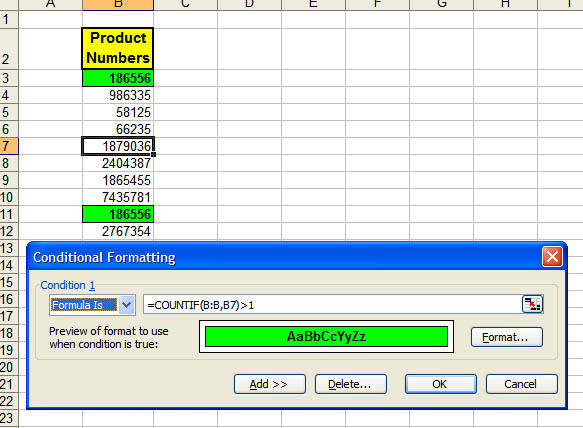 This says, "look through the entire range of column B. Count how many cells in that range are the same value as what is in B3." (In the graphic, B7 is the Active cell.) That same comparison will be made in every cell that contains the conditional formatting. (If your data is in column E and you are setting the first conditional formatting up in E5, the formula would be =COUNTIF(E:E,E5)>1.) Anytime a duplicate appears in the range, it will receive the special formatting. In this example, any time a duplicate number appears anywhere in column B, even if it is not itself formatted, the selected range will reflect the duplicate. =COUNT(B:B,B3)>2 would count entries that appear more than two times. =COUNT(B:B,B3)=2 would count entries that appear twice. If you want only a part of the column in the formula, it is easier to use absolute addresses, such as =COUNT($B$3:$B$200,B3)>1 Adapted from MrExcel.com Also see: Chip Pearson's discussion of duplicates: Duplicate And Unique Items In Lists and: Contextures.com: Conditional Formatting (See Hide Duplicate Values) See all Topics excel Labels: Formulas, General, Macros, Reference, Tips, Tutorials, VBA <Doug Klippert@ 3:11 AM
Comments:
Post a Comment
Thursday, September 10, 2015 – Permalink – Sort worksheetsOrder tabsWorksheets can be dragged and dropped into any order required. They can be set up in numeric or alpha order, but doing it by hand is a bother. Chip Pearson has written some macros that will do the job for you:
Here's the code to sort by tab color: Sub GroupSheetsByColor() Sorting Worksheets In A Workbook (The colorindex variable chooses one of the 56 colors in Excel's basic palette. Here are all the colors and numbers as compiled by F. David McRitchie:Excel Colors ) See all Topics excel <Doug Klippert@ 3:26 AM
Comments:
Post a Comment
Friday, August 14, 2015 – Permalink – CalendarOne day at a timeHere are some links with downloadable examples, and some code that can be used to create calendars in Excel: Andrew Engwirda's Excel tips: Excel Calendar Calendar Toolbar He also suggests: "Tushar Mehta has a very nice calendar too which can be found here: Erlandsen Data Consulting: "Create a Create a simple calendar for each month or a small calendar (pocket) for a whole year. MakeCalendarPlanner() (Evelyn Woolston scroll down to entry #5) Microsoft Templates: Calendar templates See all Topics excel Labels: General, Macros, Reference, Templates, Tips, Tutorials, VBA <Doug Klippert@ 3:29 AM
Comments:
Post a Comment
|

